
JSS1 Computer Studies First Term Notes: Complete Lessons
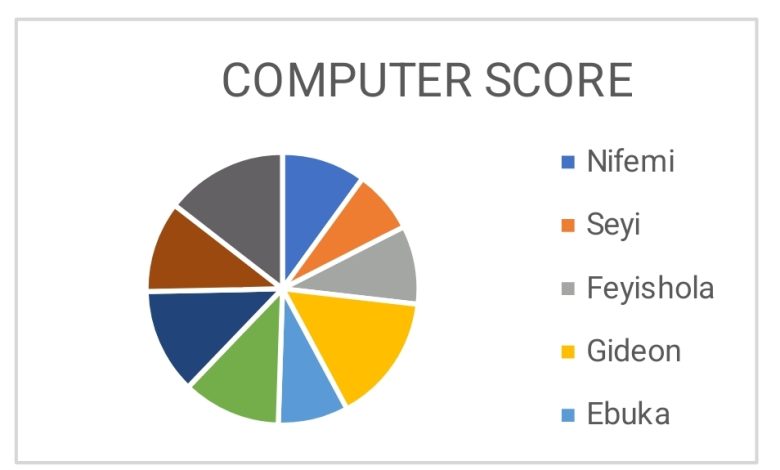
JSS1 Computer Studies lesson notes covering graphs, charts, and Excel data visualization. Complete first term curriculum with step-by-step tutorials, practical exercises, and assessment questions.
JSS1 Computer Studies: Graphs and Charts Overview
First Term Academic Session
- Subject: Computer Studies
- Class Level: JSS1 (Junior Secondary School 1)
- Term: First Term
- Topic: Introduction to Graphs and Charts
- Duration: 2 Weeks (Week 1 & Week 2)
- Target Age Group: 13-15 years
Week 1: Introduction to Graphs and Chart Types
Learning Objectives
By the end of this lesson, students should be able to:
- Define graphs and explain their importance in data visualization
- Identify different types of charts and their specific uses
- Understand the basic principles of graph construction
- Recognize when to use specific chart types for different data sets
What is a Graph?
A graph is a visual representation that shows the relationship between different quantities or variables. It’s a powerful tool that helps us understand data patterns and trends at a glance.
Key Features of Graphs:
- Display mathematical solutions in visual form
- Show relationships between two or more variables
- Use axes (horizontal and vertical lines) to measure quantities
- Make data comparison easier and more intuitive
Read Also: Nigeria’s New Educational Curriculum 2025: Complete List of Approved Subjects
Why Use Graphs?
Graphs serve several important purposes in data analysis and presentation:
- Visual Communication – Transform complex numerical data into easy-to-understand visual formats
- Comparison Analysis – Enable quick comparison between different variables or time periods
- Trend Identification – Help identify patterns, trends, and anomalies in data
- Report Enhancement – Make presentations and reports more engaging and professional
- Decision Making – Support better decision-making through clear data visualization
Types of Charts and Their Applications
Understanding different chart types helps you choose the most effective way to present your data:
1. Column Charts
Purpose: Compare values across different categories
Subtypes:
- Clustered Column: Compares multiple data series side by side
- Stacked Column: Shows how individual values contribute to a total
- 3D Column: Adds visual depth for enhanced presentation
Best Used For: Comparing sales figures across months, test scores across subjects, population data across regions
2. Bar Charts
Purpose: Similar to column charts but with horizontal orientation
Subtypes:
- Clustered Bar: Horizontal comparison of multiple data series
- Stacked Bar: Shows contribution to total in horizontal format
- 3D Bar: Enhanced visual appeal with depth effect
Best Used For: Ranking data, surveys with long category names, comparing performance metrics
3. Line Graphs
Purpose: Display trends and changes over time
Key Features:
- Shows continuous data progression
- Excellent for time-series analysis
- Can display multiple trend lines simultaneously
Best Used For: Temperature changes, stock prices, population growth, academic progress tracking
4. Pie Charts
Purpose: Show parts of a whole as percentages
Subtypes:
- Standard Pie: Basic circular representation
- 3D Pie: Enhanced visual appeal
- Exploded Pie: Emphasizes specific segments
- Doughnut Chart: Pie chart with center hollow
Best Used For: Budget allocation, market share, survey responses with categorical data
Creating Your First Graph in Excel
Follow these step-by-step instructions to create professional graphs:
Step 1: Data Preparation
- Open Microsoft Excel
- Enter your data in table format with clear headers
- Organize data in columns and rows
- Ensure data is clean and properly formatted
Step 2: Data Selection
- Highlight the cells containing your data (including headers)
- Make sure to select all relevant information
Step 3: Chart Creation
- Click the “Insert” tab in Excel ribbon
- Navigate to the “Charts” group
- Select the appropriate chart type for your data
- Customize colors, titles, and labels as needed
Sample Data Visualization
Let’s practice with real classroom data:
Weekly Computer Scores by Class
| Day | JSS1 | JSS2 | JSS3 |
|---|---|---|---|
| Monday | 105 | 86 | 75 |
| Tuesday | 98 | 64 | 67 |
| Wednesday | 92 | 73 | 62 |
| Thursday | 82 | 75 | 58 |
| Friday | 56 | 60 | 52 |
This data would be best represented using a line graph to show the daily performance trends across different class levels.
Week 2: Advanced Chart Operations and Data Range Selection
Learning Objectives
Students will learn to:
- Change chart types using the same data set
- Select specific data ranges for focused analysis
- Customize charts for better presentation
- Understand when to modify chart types for improved clarity
Changing Chart Types
Sometimes you need to experiment with different chart types to find the most effective visualization for your data.
How to Change Chart Types:
- Select the Chart – Click on your existing chart to select it
- Access Chart Tools – Click the “Insert” tab in Excel
- Choose New Type – Navigate to Charts group and select a different chart type
- Apply Changes – Click on your preferred chart style
- Review Results – Evaluate if the new chart better represents your data
When to Change Chart Types:
- Original chart doesn’t clearly show data relationships
- Audience preferences require different visualization
- Data story changes requiring different emphasis
- Presentation format demands specific chart styles
Data Range Selection for Focused Analysis
Not all data needs to be included in every chart. Strategic data selection helps create more focused and impactful visualizations.
Benefits of Selective Data Visualization:
- Emphasis – Highlight specific trends or comparisons
- Clarity – Reduce visual clutter and confusion
- Focus – Direct attention to key insights
- Relevance – Match visualization to specific analysis goals
Steps for Data Range Selection:
- Identify Purpose – Determine what story you want to tell
- Select Relevant Data – Choose only data that supports your message
- Highlight Range – Select specific cells in Excel
- Create Chart – Follow standard chart creation process
- Evaluate Effectiveness – Ensure the chart clearly communicates your intended message
Chart Customization Best Practices
Title and Labels:
- Use descriptive, clear titles
- Include units of measurement
- Label axes appropriately
- Add data labels when helpful
Color and Design:
- Choose colors that are accessible to colorblind users
- Maintain consistency across multiple charts
- Use contrast effectively
- Avoid overwhelming visual effects
Data Presentation:
- Start axes at zero when showing comparisons
- Use appropriate scales
- Include source information
- Provide context for data interpretation
Practical Exercise
Using the classroom data from Week 1, students should:
- Create a column chart showing all three classes’ performance
- Convert the same data to a line graph to show trends
- Create a pie chart showing JSS1’s performance distribution across the week
- Select only Monday-Wednesday data to create a focused comparison chart
Assessment Questions
Knowledge Check:
- What is the main purpose of using graphs in data presentation?
- Which chart type is best for showing changes over time?
- When would you use a pie chart instead of a column chart?
- List three steps involved in changing from one chart type to another in Excel.
Practical Application:
- Given a data set showing monthly rainfall, which chart type would be most appropriate and why?
- How would you select only specific months from yearly data for chart creation?
- Explain when you might need to change a pie chart to a column chart.
Key Takeaways
- Graphs transform numbers into visual stories that are easier to understand and remember
- Different chart types serve different purposes – choosing the right type is crucial for effective communication
- Excel provides powerful tools for creating professional-quality charts and graphs
- Data selection and chart customization significantly impact the effectiveness of your visualizations
- Practice and experimentation help develop skills in creating compelling data visualizations
Further Learning Resources
Students interested in advancing their graph creation skills should explore:
- Advanced Excel chart features
- Online data visualization tools
- Statistics and data analysis courses
- Graphic design principles for data presentation
Assignment for Next Class
Create charts for the following scenarios using appropriate chart types:
- School Budget Allocation: Show how school funds are distributed across different departments
- Student Performance Trends: Display math test scores for your class over the past six months
- Survey Results: Visualize favorite subjects chosen by students in your year group
Remember to justify your chart type choices and ensure your visualizations clearly communicate the intended message.
This lesson note is designed to meet educational standards while providing practical, hands-on learning experiences in data visualization and computer literacy.


